
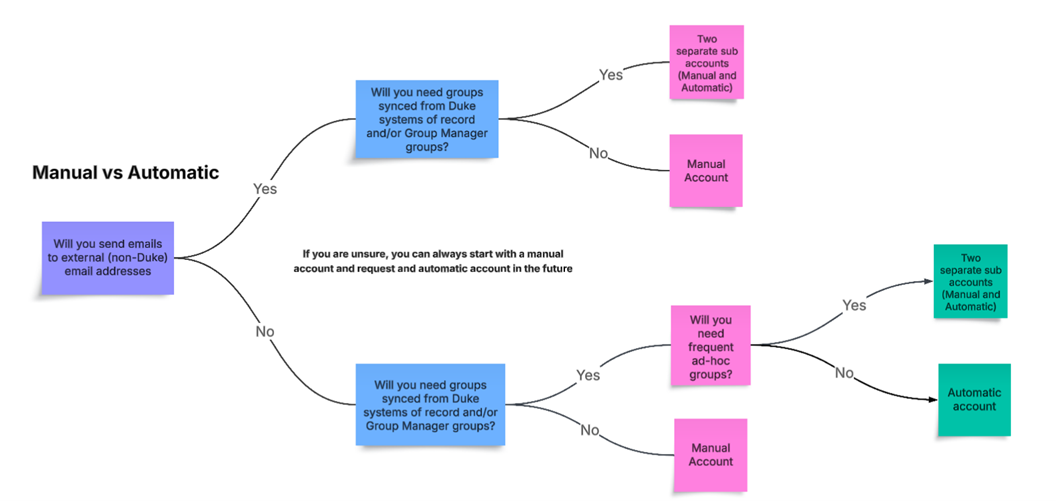
When registering for Emma, the OIT Service Team will consult with you to determine whether you need manual and/or automatic email address management. Based on your needs, you’ll be assigned one or more sub-accounts. Sub-accounts are configured to use either manual or automatic lists.
⚠️Finding this all too confusing? We recommend starting with a manual sub-account and adding an automatic sub-account later if needed. This is the type of account you’re used to from other email platforms, and it gives you flexibility to upload and manage your own lists, including non-Duke addresses.
Manual Accounts
- Work like other email marketing platforms (e.g., Mailchimp, Constant Contact).
- You upload and maintain your own contact lists directly in Emma.
- Lists can include both Duke and non-Duke email addresses.
- You can create and manage groups/segments within Emma.
- No involvement from OIT is required; contacts are fully self-managed.
- Can be set up in less time.
Automatic Accounts
- Restricted to Duke preferred email addresses only. Non-Duke emails must be managed in a manual account.
- For automatic accounts, audience lists are built and maintained outside of Emma and synced into the platform.
- Automatic accounts require collaboration with OIT and/or Identity Management, resulting in a longer lead time before you can begin using your account.
There are two types of groups available for automatic accounts:
System-Managed Groups
- Created by Duke Identity Management, which is part of the Office of Information Technology (see “Information needed for Automatic Accounts” section below).
- Applicable for groups that can be defined by organizational unit and job code (e.g., department faculty lists or department student lists).
- Data is sourced from PeopleSoft (students) and SAP (faculty/staff) records, and synced via Group Manager.
- You cannot edit, export, or store these lists.
User-Maintained Group Manager Lists
- Created by you, in collaboration with OIT, and managed by you in Duke’s Group Manager platform as “policy groups.” Contact the OIT service desk to create new groups.
- Once a group has been synced to Emma, any updates made in Group Manager will automatically carry over to Emma.
- Useful for groups not neatly defined by job codes (e.g., faculty researchers, Duke Health Integrated Practice members).
- You can edit these groups directly in Group Manager by going to “My Groups” > “Policy Groups” > “Emma” and selecting your group.
- Your account will come with a 2-3 empty ad-hoc Group Manager groups that you can use in case you need to quickly make groups. If you believe you will frequently need to create groups quickly or create one-off groups, we recommended using a manual account.
When you need both
- If you need both synced Duke internal lists and manually managed external lists, your account will be configured with multiple sub-accounts (one manual, one automatic).
- Note: Emails must be sent separately from manual and automatic lists, but you can easily share drafts between accounts.
A note about Outlook distribution lists
If you’re currently using Outlook to send emails that you would like to move over to Emma, please note that you cannot send newsletters to Outlook distribution list addresses.
Why not?
- It’s a violation of the terms of service for Emma and many other email marketing platforms.
- If you send to a distribution list and one person unsubscribes, it will unsubscribe the entire list.
- It will result in inaccurate analytics.
If you have an Outlook distribution list you would like to send Emma emails to, you’ll need to manually pull the email addresses from that list, use the Batch Identifier Tool to make sure they are the preferred email addresses, and upload them to Emma (or to a Group Manager list for automatic accounts).