
https://dhtsws-som-fedmod-documentation.ocp.dhe.duke.edu/admin/content
Site content is divided into categories, called content types, based on the section of the site the content should appear in. Below, the general process for adding content and useful information about each content type is explained.
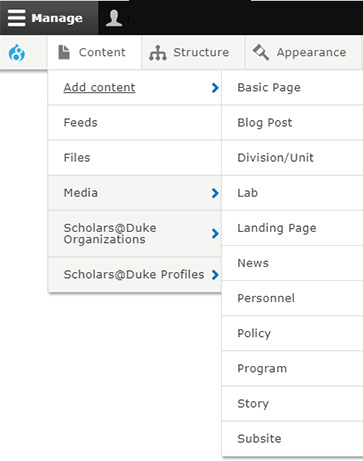
- Select on Content > Add content from the top admin menu. menu.
- Select a content type:
- Basic page: Use basic pages for your static content such as an About page.
- Blog Post:
- Division/Unit:
- Event:
- Lab:
- Landing Page:
- News:
- Personnel:
- Policy:
- Program:
- Story:
- Subsite:
- Fill out at least the title of the page and any required fields
- Save
- Select edit at the top of the page and complete the rest of the desired fields and paragraphs
- Select relationships
- Add to menu
- Save
About Paragraph types
- Outline basic concept of paragraph types
- edit
- delete
- rearrange order
- For more information: [Working with Paragraphs types]
Editing Content
Below, the general process for finding and editing content is described. For more information about a given content type, see the corresponding Adding Content section.
- Log in to your site.
- Find the content to be edited.
- Make all necessary changes.
- Save your changes
Finding Content
Using the Front End of the Site
After logging in, navigate to the page you want to edit with the site's main menu and click on the Edit tab.
Using the Admin Content page
After logging in, click on Content in admin menu near the top of the page.
If you have previously edited a page, you can find it in the My Edits section.
If not, you can find a page in the *All Content section by typing the name of the page in the Title field and clicking Filter. You can also set the Content type and Published status filters. You can clear all filters by clicking the Reset Button.
Once you have found the desired page, click the Edit link to the right of the page title in the list.
Editing Content
- Once you have selected a page to edit, make any necessary changes to the page content. For more information about working with content types or specific form fields, see the corresponding sections.
- Do not uncheck the Create new revision box.
- Click Save at the bottom of the page.
Reverting A Page To A Previous Version
You can browse previous versions of the page by clicking on the links showing the date and time of each revision. Click your browser’s back button to return to the list. Once you’ve found the desired revision, click on the Revert link next to the desired revision (usually the one right below the current revision). When prompted to confirm your choice, click the Revert button.